Currently, the ‘Use CPU if no CUDA device detected’ [1] pull request has not merged. Following the instructions at [2] and jumping down the dependency rabbit hole, I finally have Stable Diffusion running on an old dual XEON server.
Notes: 1) Typically only 18 (out of 32 cores) active regardless of render size. 2) As expected, the calculation is entirely CPU bound. 3) For an unknown reason, even with –n_samples and –n_rows of 1, two images were still created (time halved for single image in above table).
Another CPU Rendered Cat 512×512
Conclusion:
It works. We gain resolution at the huge expense of memory and time.
I recently purchased AmigaOS 4.1 with a plan to familiarise myself with the OS via emulation before purchasing the Freescale QorIQ P1022 e500v2 ‘Tabor’ motherboard. In particular, I wanted to investigate the ssh and X display options, including AmiCygnix.
OS4.1 running under FS-UAE & QEMU, showing config and network status
However, despite being familiar with OS3.1 and FS-UAE I still managed to hit a few gotchas with the OS4 install and configuration.
Installation of the QEMU module was simple using the download and simple instructions from: https://fs-uae.net/download#plugins. In my case this was version 3.8.2qemu2.2.0 and installed in ~/Documents/FS-UAE/Plugins/QEMU-UAE/Linux/x86-64/ (your path may vary).
I then tried multiple FS-UAE configurations in order to get the emulated machine to boot with PPC, RTG and network support. A few options clash resulting in a purple screen on boot. Rather than work through the process from scratch, it’s easier to simply list my config here:-
I used FS-UAE (and FS-UAE-Launcher) version 2.8.3.
Things to note:
See http://eab.abime.net/showthread.php?t=75195 for install advice regarding disk partitioning and FS type. This is important!
Shared folders (between host OS and Emulation) are *not* currently supported when using PPC under FS-UAE. Post install, many additional packages were required, including network drivers which resulted in a catch-22 situation. I worked around this by installing a 3.1.4 instance and mounting both the OS4 and ‘shared’ drives here, copying the required files over then booting back into the OS4 PPC environment.
For networking, UAE.bsdsocket.library in UAE should be disabled but the A2065 network card enabled. The correct driver from aminet is: http://aminet.net/package/driver/net/Ethernet
The latest updates to OS4.1 (final) enable Zorro III RAM to be used in addition to accelerator RAM; essential for AmiCygnix. Once OS4.1 is installed and network configured, use the included update tool to pull OS4.1 FE updates.
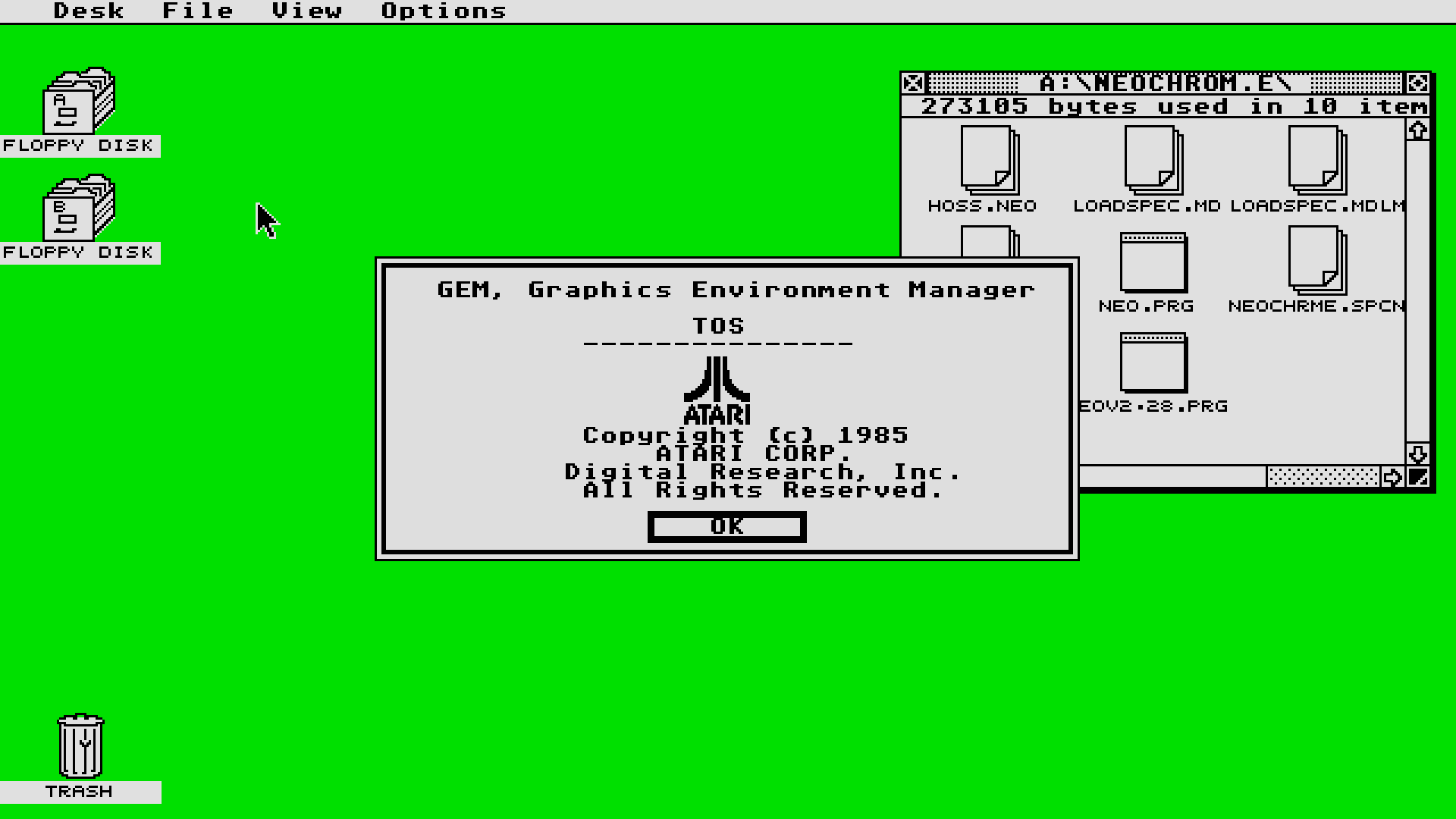
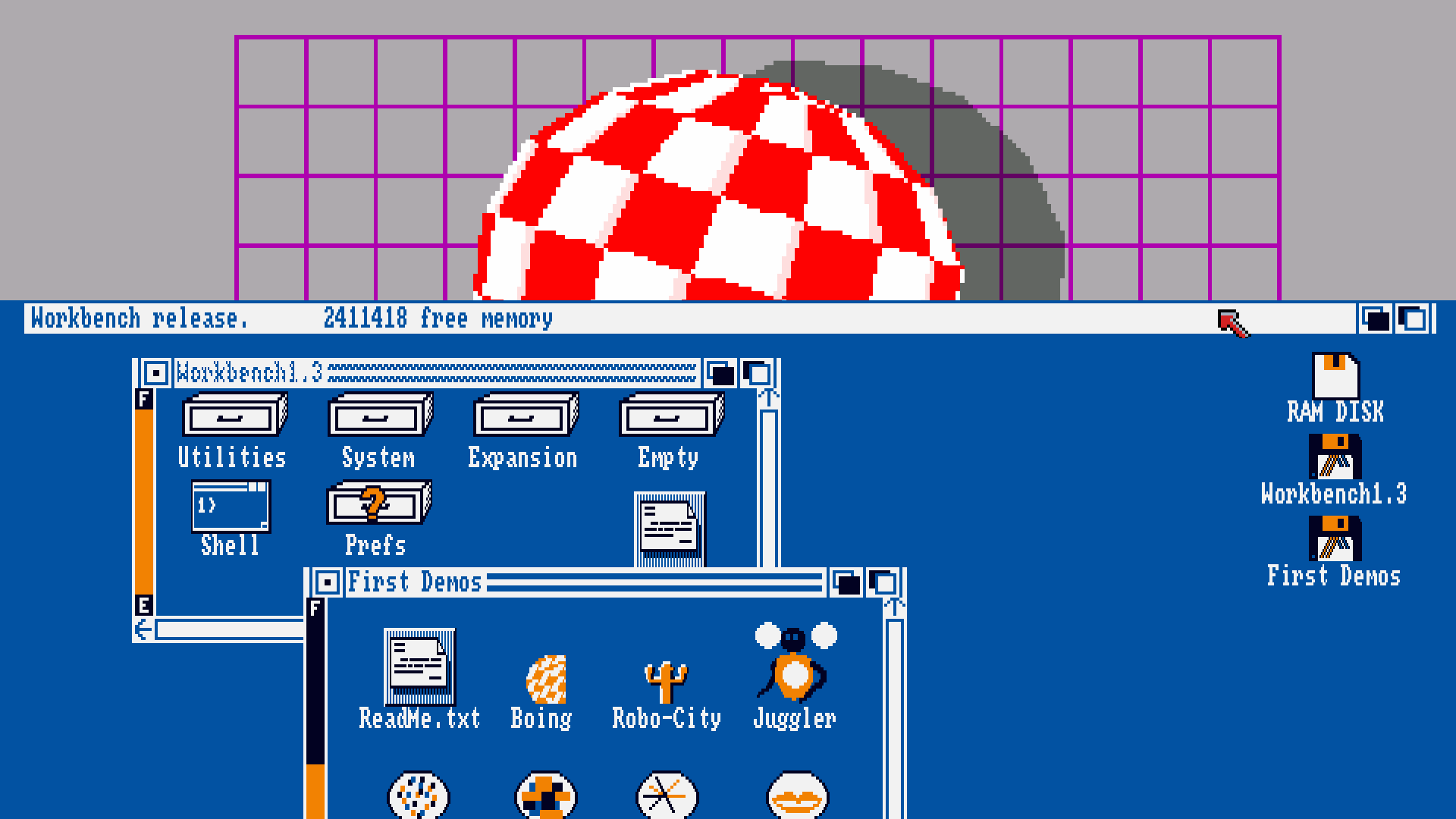
I couldn’t find any good quality 1920×1080 (so called ‘full HD’) desktop wallpapers featuring either Atari ST GEM or Commodore Amiga Workbench 1.3. So, assembled from parts taken from various images on google, scaled with correct aspect ration maintained, tidied and assembled to fill the full resolution and with no JPEG compression artifacts – here we are:-
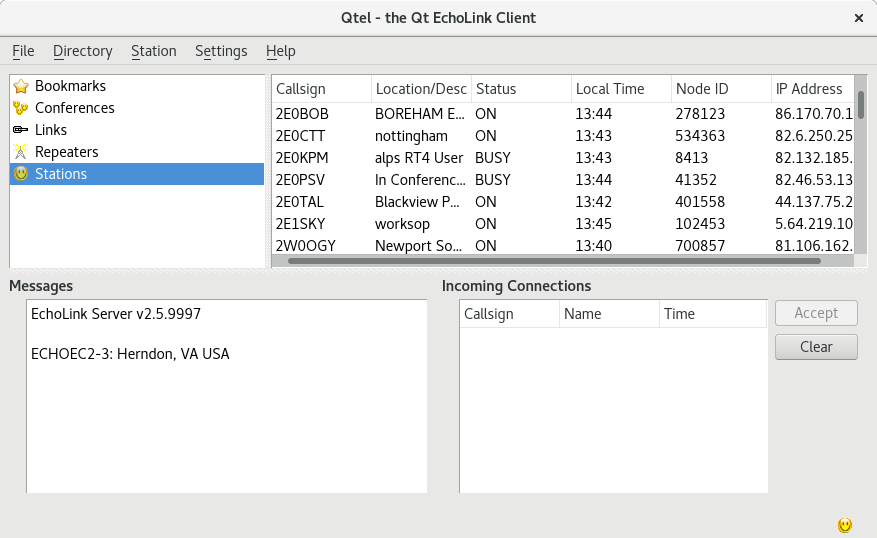
With both my previous bad experience building qtel (the Linux EchoLink client) and recent discussions on a forum around similar difficulties – I thought I’d identify, resolve and document the issues.
I’m not sure what’s changed but the process is now very simple (Fedora 28):-
git clone https://github.com/sm0svx/svxlink.git

cd svxlink/

cd src

sudo dnf install cmake libsigc++20-devel qt-devel popt-devel libgcrypt-devel gsm-devel tcl-devel

cmake .

make

cp bin/qtel DESTINATION_PATH_OF_CHOICE
Depending on libs already installed, additional packages may be required – as indicated by failures during the ‘cmake’ stage.
We had a requirement to gather LVM (VG) metrics via Prometheus to alert when GlusterFS is running low on ‘brick’ storage space. Currently, within Openshift 3.9 the only metrics seem to relate to mounted FS. A ‘heketi exporter module’ exists but this only reports space within allocated blocks. There doesn’t appear to be any method to pull metrics from the underlying storage.
We solved this by using a Prometheus pushgateway. Metrics are pushed from Gluster hosts using curl (via cron) and then pulled using a standard Prometheus scrape configuration (via prometheus configmap in OCP). Alerts are then pushed via alertmanager and eventually Cloudforms.
Import the pushgateway image:
oc import-image openshift/prom-pushgateway --from= docker.io/prom/pushgateway --confirm
Create pod and expose route. Then, add scrape config to prometheus configmap:-
Noticed issue when rebuilding dockerfile and running image:-
panic: standard_init_linux.go:178: exec user process caused "exec format error" [recovered]
	panic: standard_init_linux.go:178: exec user process caused "exec format error"

goroutine 1 [running, locked to thread]:
panic(0x6f3080, 0xc4201393b0)
Did much digging, identified that when specifying a script as a CMD in the Dockerfile, this script now requires a proper hashbang (aka shebang) or the above panic results.
A dummy java executable (actually a jar) was required to develop init scripts without access to the client’s application. The process of creating a Java ‘sleep’ application and wrapping within a ‘jar’ complete with manifest was not obvious to me. The ‘thread.sleep’ also didn’t work as I expected, requiring an additional exception handler. Not to mention the requirement for the manifest to require multiple new lines before being syntactically correct (and no report otherwise when incorrectly parsed, except ‘no main manifest attribute’ when attempting to run). Why Java, WHY?
The following tgz contains both the compiled java executable plus source, manifest and instructions to build / compile the jar should the wait time (default 100 seconds) need to be modified.