All posts by Steven Netting

VPN-like functionality over ssh tunnel (sshuttle)

Running TCP over TCP (for example, TCP over an SSH tunnel) results in poor performance and reliability.  There’s several ways to do this; for example basic port forwarding in ssh or via pppd over ssh.

However, there’s a much nicer solution:  sshuttle!

From GitHub:

“As far as I know, sshuttle is the only program that solves the following common case:

  • Your client machine (or router) is Linux, FreeBSD, or MacOS.
  • You have access to a remote network via ssh.
  • You don’t necessarily have admin access on the remote network.
  • The remote network has no VPN, or only stupid/complex VPN protocols (IPsec, PPTP, etc). Or maybe you are the admin and you just got frustrated with the awful state of VPN tools.
  • You don’t want to create an ssh port forward for every single host/port on the remote network.
  • You hate openssh’s port forwarding because it’s randomly slow and/or stupid.
  • You can’t use openssh’s PermitTunnel feature because it’s disabled by default on openssh servers; plus it does TCP-over-TCP, which has terrible performance (see below).”

‘sshuttle’ appears to be available in both in the standard debian/ubuntu repos and the RHEL/Centos EPEL repo.

The following creates ane then routes all traffic (including DNS lookuos) over a ‘VPN-like’ ssh tunnel.

sudo sshuttle --dns -r <user>@<target host>:<port> 0/0 -vv

Once this is working you can drop the -vv (verbose level 2).  Also, if you’re not concerned about DNS hijacking you can omit the –dns to speed up DNS lookups (resolve locally).  To stop the tunnel just CTRL-C.

The man page for sshuttle is quite detailed; check there for more information.

Ansible: Simple template example within a role

Here, we create a role which a) deploys a file into /tmp and b) demonstrates the use of a host variable to modify the contents of this file. As the contents is dynamic we use the ‘template’ module, rather than file.

Using Ansible Galaxy we create the role directory structure:-

steve@devbox:~$ cd ~ansible/roles
steve@devbox:~/ansible/roles$ ansible-galaxy init testtmp
- testtmp was created successfully

Let’s go ahead and create our template file:-

steve@devbox:~/ansible/roles$ cd testtmp/templates
steve@devbox:~/ansible/roles/testtmp/templates$ vi tmp.conf

Swap Free = {{ ansible_swapfree_mb }}

The {{ ansible_swapfree_mb }} indicates a variable (in this case, a host fact).

Now create a simple task top deploy the above template:-

steve@devbox:~/ansible/roles/testtmp/templates$ cd ../tasks/
steve@devbox:~/ansible/roles/testtmp/tasks$ vi main.yml 

---
# tasks file for testtmp
- name: Drop template into /tmp
  template: src=~/ansible/roles/testtmp/templates/tmp.conf dest=/tmp/tmp.txt

We now modify (or create) our site.yml:-

steve@devbox:~/ansible/roles/testtmp/tasks$ cd ~/ansible/
steve@devbox:~/ansible$ ls
roles  site.yml
steve@devbox:~/ansible$ vi site.yml 

---
- name: Deploy test roles
  hosts: all
  become: true

  roles:
    - time
    - testtmp

Now let’s run the playbook:-

steve@devbox:~/ansible$ ansible-playbook site.yml

PLAY [test ntp via time role] **************************************************

TASK [setup] *******************************************************************
ok: [172.0.0.1]

TASK [time : Install NTP] ******************************************************
ok: [172.0.0.1]

TASK [testtmp : Drop template into /tmp] ***************************************
changed: [172.0.0.1]

PLAY RECAP *********************************************************************
172.0.0.1                  : ok=3    changed=1    unreachable=0    failed=0   

Success! Let’s hit the target and check the actual changes:-

steve@devbox:~/ansible$ ssh 172.0.0.1
...
Last login: Tue Nov 22 12:55:29 2016 from 172.0.0.2
steve@testtarget:~$ ls -l /tmp
total 4
-rw-r--r-- 1 root root 17 Nov 22 12:55 tmp.txt
steve@testtarget:~$ cat /tmp/tmp.txt 
Swap Free = 767

Yes! The template is deployed and the variable is set correctly.

Ansible: From install to roles in 5 minutes

Here’s a real quick walkthrough from install of Ansible to a primitive role based playbook.

Install ansible and create/edit our ansible hosts file:-

steve@devbox:~$ sudo aptitude install ansible
steve@devbox:~$ sudo vi /etc/ansible/hosts

[test]
172.0.0.1

In my case I have a single target in the ‘test’ group:-

I copy my private key to the remote system (authorized_keys) ensuring permissions are correct.
We should then be able to do an ansible ping. Be aware you will need python installed on the target.

steve@devbox:~$ ansible -m ping all
172.0.0.1 | SUCCESS => {
    "changed": false, 
    "ping": "pong"
}

Now I make a basic directory structure to store our yaml files.

steve@devbox:~$ mkdir ansible/roles
steve@devbox:~$ cd ansible/roles

ansible-galaxy can help us with the layout of the role directory structure:-

steve@devbox:~$ ansible-galaxy init time
- time was created successfully

Let’s take a look at what ansible-galaxy has created for us:-

steve@devbox:~$ cd time; ls
defaults  files  handlers  meta  README.md  tasks  templates  tests  vars

Great stuff. Let’s start by creating a task. I’d like to install NTP and ensure it’s running.

steve@devbox:~$ cd tasks
steve@devbox:~$ vi main.yml

---
# tasks file for time
- name: Install NTP
  apt: pkg=ntp state=installed update_cache=true
  notify: start ntp

The above includes a ‘notify’ for a handler to take action. Let’s create that handler:-

steve@devbox:~$ cd ../handlers
steve@devbox:~$ vi main.yml

---
# handlers file for time
- name: start ntp
  service: name=ntp state=started

Now move back to the root of our ansible configs and create a simple playbook (site.yml)

steve@devbox:~$ cd ~/ansible
steve@devbox:~$ vi site.yml

---

- name: test ntp via time role
  hosts: all
  become: true

  roles: 
    - time

The above indicates we want all hosts to include the NTP role. We’ll need to ‘become root’ on the target in order to install software. The role we want to run is called ‘time’ (as per the ansible-galaxy init and our resultant direcctory structure).

Finally, let’s run the site playbook:-

steve@devbox:~$ ansible-playbook site.yaml

PLAY [test ntp via time role] **************************************************

TASK [setup] *******************************************************************
ok: [172.0.0.1]

TASK [time : Install NTP] ******************************************************
changed: [172.0.0.1]

RUNNING HANDLER [time : start ntp] *********************************************
ok: [172.0.0.1]

PLAY RECAP *********************************************************************
172.0.0.1                  : ok=3    changed=1    unreachable=0    failed=0   

Success!

Correlate devices and LUNs with powerpath pseudo-devices

Quick bash snippet to list powerpath pseudo-devices, LUNs and underlying devices.  This takes the raw output of ‘powermt display dev-all’ and massages it into a parseable list:-

From:

Pseudo name=emcpowera
Symmetrix ID=000192600720
Logical device ID=047C
Device WWN=60000970000192600720533030343743
state=alive; policy=SymmOpt; queued-IOs=0
==============================================================================
--------------- Host ---------------   - Stor -  -- I/O Path --   -- Stats ---
###  HW Path               I/O Paths    Interf.  Mode     State   Q-IOs Errors
==============================================================================
   3 lpfc                   sdadq      FA 10f:00 active   alive      0      0
   1 lpfc                   sdrj       FA 12f:00 active   alive      0      0
   0 lpfc                   sdaw       FA  5f:00 active   alive      0      0
...

To:

emcpowera 60000970000192600720533030343743 sdadq sdrj sdaw
...

Note: the sed may need to be adjusted to to match your storage solution / HW Path.

for field in $(sudo powermt display dev=all | egrep "Pseudo|lpfc|WWN" | awk '{ print $2" "$3 }' | cut -d"=" -f2 | sed 's/lpfc //g'); do
    if [[ $field = "emcpower"* ]]; then
      echo -en "\n$field "
    else
      echo -n "$field ";
    fi
done


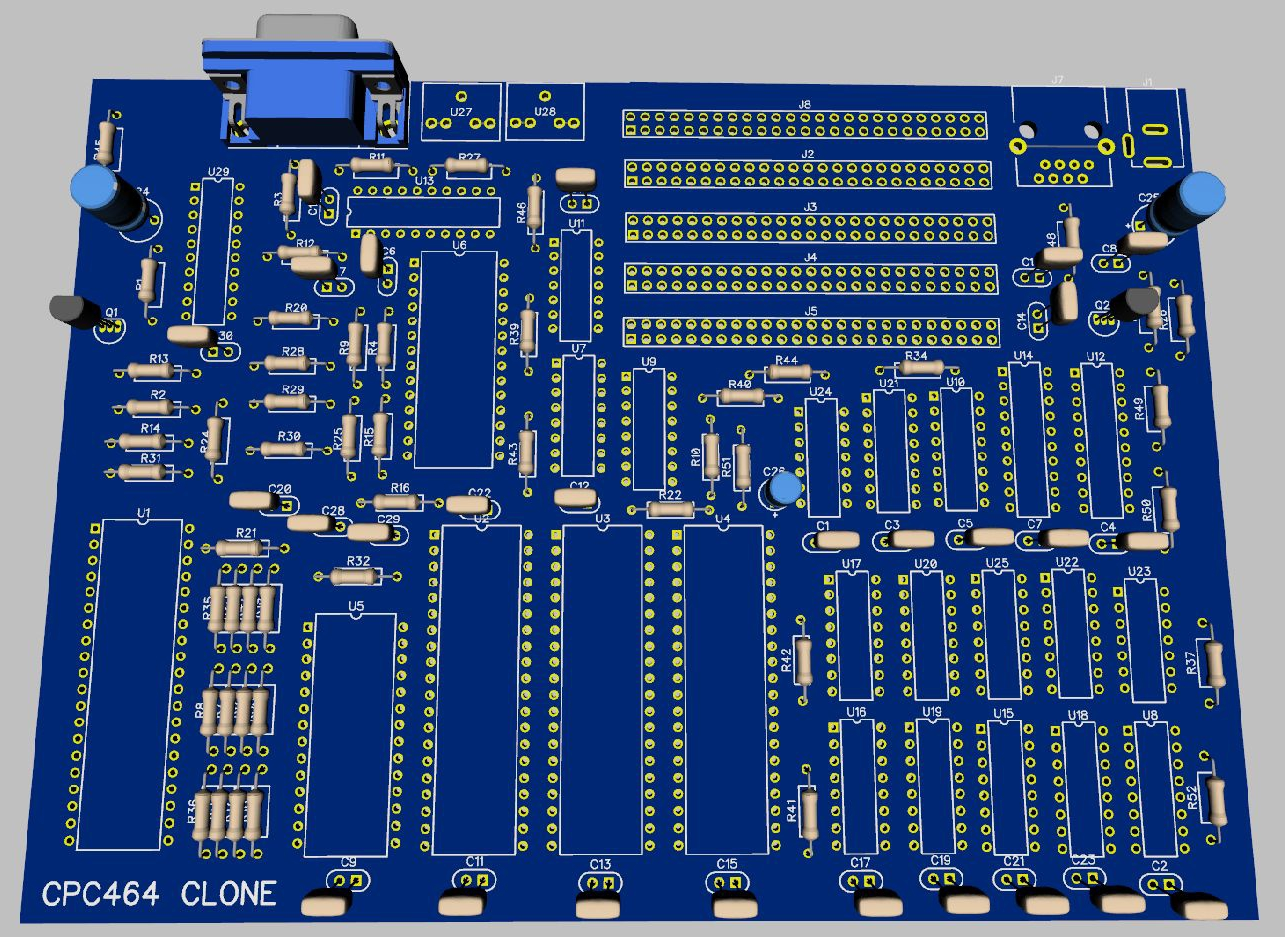
Just CPC: The 2015 Amstrad CPC Clone

On the 7th January 2015 Piotr Bugaj released the first details regarding his Amstrad CPC clone.  The original specification included 64Kb RAM and MX4 expansion connectors, in addition to the standard edge connector.

cpc-clone-original
The Original ‘Just CPC’ Design

By August 2015 the first boards started arriving.  By this point it had lost one MX4 slot but gained a voltage rectifier, regulator, 128Kb RAM and an onboard floppy controller (DDI-1) including Parados ROM and a PS/2 keyboard interface.

img_0007
The ‘Just CPC 128K’

The complete board is a 4 layer design and is available as either a complete or unpopulated board.  The ‘Just CPC 128k’ is available from http://www.sellmyretro.com/.

img_0002
‘Just CPC 128k’, Zaxon (Speccy.pl)


AmiTCP and Configuration of cnet.device

This is something I’ve rarely needed to do, but on occasions when it is needed I’ve found myself re-learning the process.

amitcp

AmiTCP4 is not supplied with cnet.device drivers. In my case I have an NE2000 based PCMCIA network card which is supported by the cnet device.

Firstly, I download the cnet package from aminet and install. Be careful to pay attention to the version you copy (difference between 68000 and 68020+ versions). I copied the Network/* directory to DEVS: (so network sits alongside Datatypes, DOSDrivers, Monitors, Printers etc).

Secondly, install AmiTCP v4. Depending on options selected at install time, startup may or may not be added to the startup-sequence; no worries either way. Note, cnet is not supported out of the box so I simply select another device (for example A2065), we’ll clean up any configuration later.

Once installed, you should have an AmiTCP: assign configured. If not, check your installation! From here onwards I assume the assign is pointing at the AmiTCP installation directory.

We have a few things to change:-

1) Edit AmiTCP:db/interfaces
Find the device you selected at install and edit the line(s)
I edited the A2065 line as follows:
cnet DEV=DEVS:Networks/cnet.device UNIT=0

Note the DEVS:Networks path to the cnet.device, this should be set to wherever you copied the network devices to during cnet install (logically DEVS:Networks).
Also note only one line should exist in the interfaces file pointing to that specific (cnet) device.

2) Edit AmiTCP:db/hosts
Add the IP you configured at install time (also the IP configured in AmiTCP:bin/startnet, should you later wish to change it) to AmiTCP:db/hosts, for example:-
192.168.0.10 a600 a600.track3.org.uk
Note: Best to enter both the short name and FQDN

3) Edit AMITCP:bin/startnet
Here we need to edit the line starting with AmiTCP:bin/ifconfig, for example:-
AmiTCP:bin/ifconfig cnet {IPADDRESS} netmask 255.255.255.0
Note: It is probably also safe to comment out the AmiTCP:bin/login line (to save requiring login at boot), for example:-
;AmiTCPLbin/login -f steve

4) You should now be good to start AmiTCP using the ‘startnet’ command. First things first, try pinging a local machine such as the gateway. If that works, try ping an internet host by name. All being well, you should now be online!

Openshift: Recovery from Head Gear (or Node) Failure

This is another question that has been raised several times recently. Perhaps a node vanishes and is unrecoverable, how do we recover from the loss of a head gear? Is it possible to promote a normal gear to head status?

The simple answer appears to be … no.

The solution here is to run backups of /var/lib/openshift on all nodes.

In the case of node failure a fresh node can be built, added to the district, /var/lib/openshift restored from backup then a ‘oo-admin-regenerate-gear-metadata’ executed. This (as the name suggests) recreates metadata associated with all gears on the node. This includes gear entries in passwd/group files, cgroup rules and limits.conf.

OpenShift: Testing of Resource Limits, CGroups

Recently I’ve had two customers asking the same question.

How can we put sufficient load on a gear or node in order to demonstrate:-
a) cgroup limits
b) guaranteed resource allocation
c) ‘worst case scenario’ performance expectations

This is perhaps a reasonable question but very difficult to answer. Most of the limits in OSE are imposed by cgroups, mostly with clearly defined limits (as defined in the nodes /etc/openshift/resource_limits.conf). The two obvious exceptions are disk space (using quota) and CPU.

Whilst CPU is implemented by cgroups, this is defined in terms of shares; You can’t guarantee a gear x cpu cycles, only allocate a share and always in competition with other gears. However, by default a gear will only use one CPU core.

When trying to create a cartridge to demonstrate behavior under load, I quickly realised the openshift-watchman process is quick to throttle misbehaving gears. If during testing you see unexpected behaviour, remember to test with and without watchman running!

I took the DIY cartridge as an example and modified the start hook to start a ‘stress’ process. Environment variables can be set using rhc to specify number of CPU, VM, IO and HD threads. This cartridge does not create network load.

http://www.track3.org.uk/~steve/openshift/openshift-snetting-cartridge-stress-0.0.1-1.el6.x86_64.rpm

Collection and analysis of load/io data is left to the user.

Creating of a ‘stress’ application:-


[steve@broker ~]$ rhc app create snstress stress
Using snetting-stress-0.1 (StressTest 0.1) for 'stress'

Application Options
-------------------
Domain: steve
Cartridges: snetting-stress-0.1
Gear Size: default
Scaling: no

Creating application 'snstress' ... done

Disclaimer: Experimental cartridge to stress test a gear (CPU/IO).
Use top/iotop/vmstat/sar to demonstrate cgroup limits and watchman throttling.
STRESS_CPU_THREADS=1
STRESS_IO_THREADS=0
STRESS_VM_THREADS=0
STRESS_HD_THREADS=0
Note: To override these values use 'rhc env-set' and restart gear
See http://tinyurl.com/procgrr for Resource Management Guide
Stress testing started.

Waiting for your DNS name to be available ... done

Initialized empty Git repository in /home/steve/snstress/.git/

Your application 'snstress' is now available.

URL: http://snstress-steve.example.com/
SSH to: 55647297e3c9c34266000137@snstress-steve.example.com
Git remote: ssh://55647297e3c9c34266000137@snstress-steve.example.com/~/git/snstress.git/
Cloned to: /home/steve/snstress

Run 'rhc show-app snstress' for more details about your app.

‘top’ running on the target node (one core at 100% user):-


top - 14:19:49 up 5:50, 1 user, load average: 0.76, 0.26, 0.11
Tasks: 139 total, 3 running, 135 sleeping, 0 stopped, 1 zombie
Cpu0 : 0.0%us, 0.0%sy, 0.0%ni, 99.7%id, 0.3%wa, 0.0%hi, 0.0%si, 0.0%st
Cpu1 :100.0%us, 0.0%sy, 0.0%ni, 0.0%id, 0.0%wa, 0.0%hi, 0.0%si, 0.0%st
Cpu2 : 0.0%us, 0.0%sy, 0.0%ni,100.0%id, 0.0%wa, 0.0%hi, 0.0%si, 0.0%st
Cpu3 : 0.0%us, 0.3%sy, 0.0%ni, 99.7%id, 0.0%wa, 0.0%hi, 0.0%si, 0.0%st
Mem: 1019812k total, 474820k used, 544992k free, 75184k buffers
Swap: 835580k total, 440k used, 835140k free, 80596k cached

Using rhc we stop the application, define some variables (add IO worker threads) and restart:-


[steve@broker ~]$ rhc app stop snstress
RESULT:
snstress stopped
[steve@broker ~]$ rhc app-env STRESS_IO_THREADS=1 --app snstress
Setting environment variable(s) ... done
[steve@broker ~]$ rhc app-env STRESS_VM_THREADS=1 --app snstress
Setting environment variable(s) ... done
[steve@broker ~]$ rhc app-env STRESS_HD_THREADS=1 --app snstress
Setting environment variable(s) ... done
[steve@broker ~]$ rhc app start snstress
RESULT:
snstress started

Check node ‘top’ again (note multiple threads):-


top - 14:23:20 up 5:54, 1 user, load average: 0.53, 0.40, 0.20
Tasks: 142 total, 4 running, 137 sleeping, 0 stopped, 1 zombie
Cpu0 : 1.3%us, 0.3%sy, 0.0%ni, 97.7%id, 0.7%wa, 0.0%hi, 0.0%si, 0.0%st
Cpu1 : 0.7%us, 11.9%sy, 0.0%ni, 87.5%id, 0.0%wa, 0.0%hi, 0.0%si, 0.0%st
Cpu2 : 2.6%us, 7.3%sy, 0.0%ni, 86.8%id, 2.6%wa, 0.0%hi, 0.0%si, 0.7%st
Cpu3 : 6.6%us, 0.3%sy, 0.0%ni, 92.7%id, 0.0%wa, 0.0%hi, 0.0%si, 0.3%st
Mem: 1019812k total, 636048k used, 383764k free, 64732k buffers
Swap: 835580k total, 692k used, 834888k free, 68716k cached

PID USER PR NI VIRT RES SHR S %CPU %MEM TIME+ COMMAND
20637 4325 20 0 262m 198m 176 R 12.0 19.9 0:04.35 stress
20635 4325 20 0 6516 192 100 R 9.6 0.0 0:04.33 stress
20636 4325 20 0 6516 188 96 R 8.0 0.0 0:02.42 stress

Not what’s expected?


[root@node1 ~]# service openshift-watchman status
Watchman is running

Hmmm…


[root@node1 node]# tail -f /var/log/messages
May 26 15:33:55 node1 watchman[7672]: Throttler: throttle => 55647297e3c9c34266000137 (99.99)

… demonstrating watchman is doing its job! But, let’s stop watchman and let the abuse begin…


[root@node1 ~]# service openshift-watchman stop
Stopping Watchman

Top (notice high IO Wait)…


top - 14:26:46 up 5:57, 1 user, load average: 0.70, 0.41, 0.22
Tasks: 142 total, 4 running, 137 sleeping, 0 stopped, 1 zombie
Cpu0 : 0.0%us, 5.4%sy, 0.0%ni, 23.7%id, 69.5%wa, 0.3%hi, 0.3%si, 0.7%st
Cpu1 : 0.3%us, 6.0%sy, 0.0%ni, 64.2%id, 27.8%wa, 0.0%hi, 0.7%si, 1.0%st
Cpu2 : 12.2%us, 0.0%sy, 0.0%ni, 87.1%id, 0.0%wa, 0.0%hi, 0.0%si, 0.7%st
Cpu3 : 0.7%us, 11.3%sy, 0.0%ni, 76.4%id, 10.6%wa, 0.0%hi, 0.7%si, 0.3%st

Mem: 1019812k total, 910040k used, 109772k free, 66360k buffers
Swap: 835580k total, 692k used, 834888k free, 339780k cached

PID USER PR NI VIRT RES SHR S %CPU %MEM TIME+ COMMAND
22182 4325 20 0 6516 192 100 R 12.3 0.0 0:00.70 stress
22184 4325 20 0 262m 226m 176 R 10.6 22.7 0:00.60 stress
22185 4325 20 0 7464 1264 152 R 7.3 0.1 0:00.53 stress

Further analysis can be done using vmstat, iotop, sar or your tool of preference.

If IO stops after a few seconds it’s also worth tailing your application log:-


[steve@broker ~]$ rhc tail snstress
[2015-05-26 14:25:34] INFO going to shutdown ...
[2015-05-26 14:25:34] INFO WEBrick::HTTPServer#start done.
stress: info: [21775] dispatching hogs: 1 cpu, 1 io, 1 vm, 1 hdd
[2015-05-26 14:25:35] INFO WEBrick 1.3.1
[2015-05-26 14:25:35] INFO ruby 1.8.7 (2013-06-27) [x86_64-linux]
[2015-05-26 14:25:36] INFO WEBrick::HTTPServer#start: pid=21773 port=8080
stress: FAIL: [21780] (591) write failed: Disk quota exceeded
stress: FAIL: [21775] (394) <-- worker 21780 returned error 1 stress: WARN: [21775] (396) now reaping child worker processes stress: FAIL: [21775] (400) kill error: No such process

I hope someone, somewhere, finds this useful :o)

OSE 2.x Support Node (MongoDB) Firewall

This is effectively a ‘reverse firewall’;  allow everything *except* connections to MongoDB.  A connection to Mongo without authentication can do little more than query the MongoDB db.version() however some still consider this a security risk.

#!/bin/bash -x
#
# Script to firewall Openshift Support (Mongo) Nodes
# 21/04/15 snetting

IPTABLES=/sbin/iptables

# Add all brokers and support nodes here (use FQDNs)
OSE_HOSTS="broker1.domain
broker2.domain
supportnode1.domain
supportnode2.domain"

# Convert to IPs and add localhost
MONGO_IPS=$(dig $OSE_HOSTS +short)
MONGO_IPS="$(echo $MONGO_IPS | tr ' ' ','),127.0.0.1"

# Add iptables ACCEPT rules
$IPTABLES -A INPUT -p tcp -s $MONGO_IPS --destination-port 27017 -j ACCEPT

# Add iptables REJECT (port 27017)
$IPTABLES -A INPUT -p tcp --destination-port 27017 -j REJECT